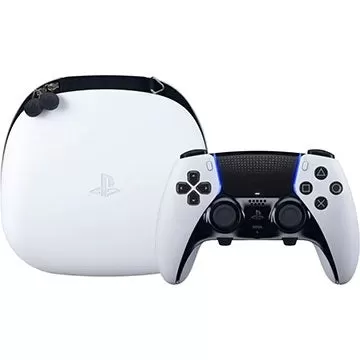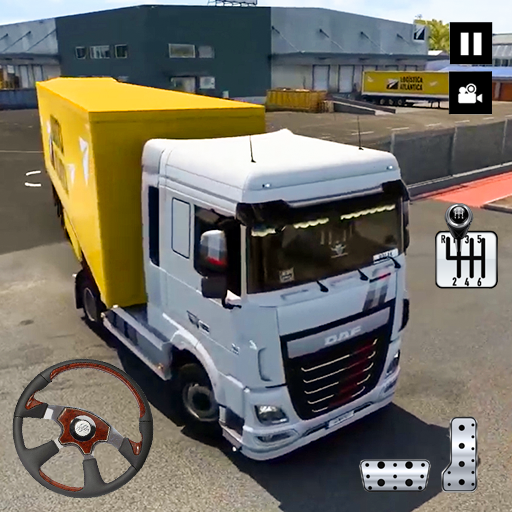
The Sony DualSense stands out as the best PS5 controller, thanks to its innovative features, superior grip, and ergonomic design, enhancing your gaming experience on the PlayStation 5. While connecting it to best gaming PCs might have been challenging with the DualShock 4, the DualSense offers much more robust PC support, making it a top contender among the best PC controllers. Below, you'll find a straightforward guide on how to connect your DualSense to a PC.
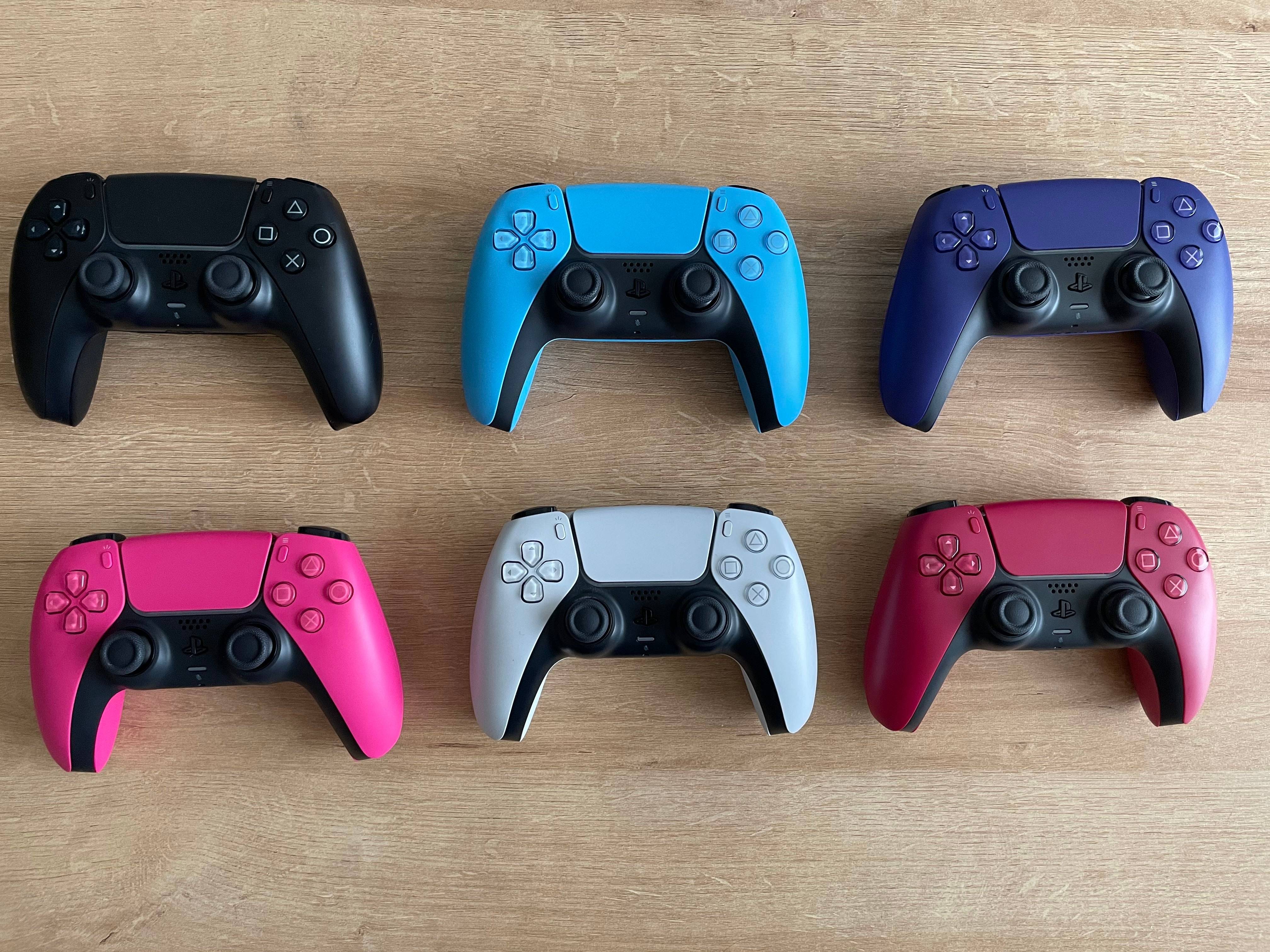
Items Needed to Pair PS5 Controller with PC
- Data-ready USB-C cable
- Bluetooth adapter for PC
Connecting your DualSense to a PC can be straightforward, but you'll need the right equipment. The DualSense doesn’t come with a USB cable when purchased separately, and not all PCs have built-in Bluetooth. To pair your DualSense with a PC, you'll need a USB-C cable that supports data transfer—some budget cables only provide power. You can use a C-to-C cable if your PC has a USB-C port, or a USB-C-to-A cable for traditional rectangular USB ports.
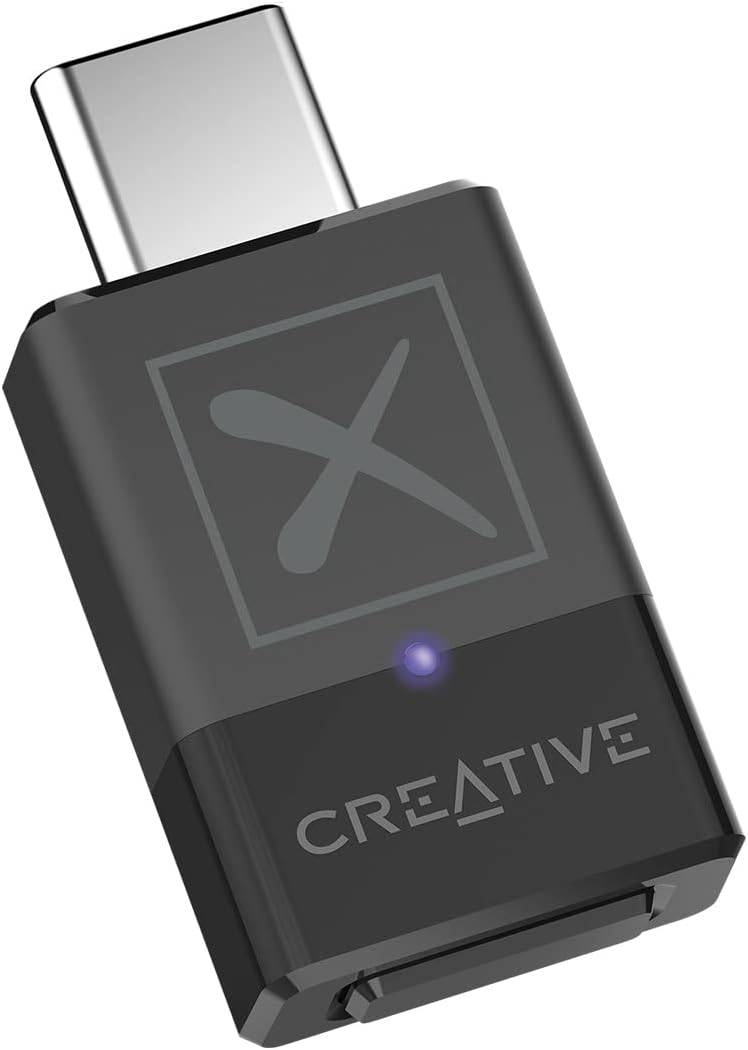
If your PC lacks Bluetooth, adding it is simple. Numerous Bluetooth adapters are available, ranging from those that fit into a PCIe slot to those that just need a free USB port.
Our Top Pick
Creative BT-W5 Bluetooth Transmitter
See it at Amazon
How to Pair the PS5 Controller to PC over USB
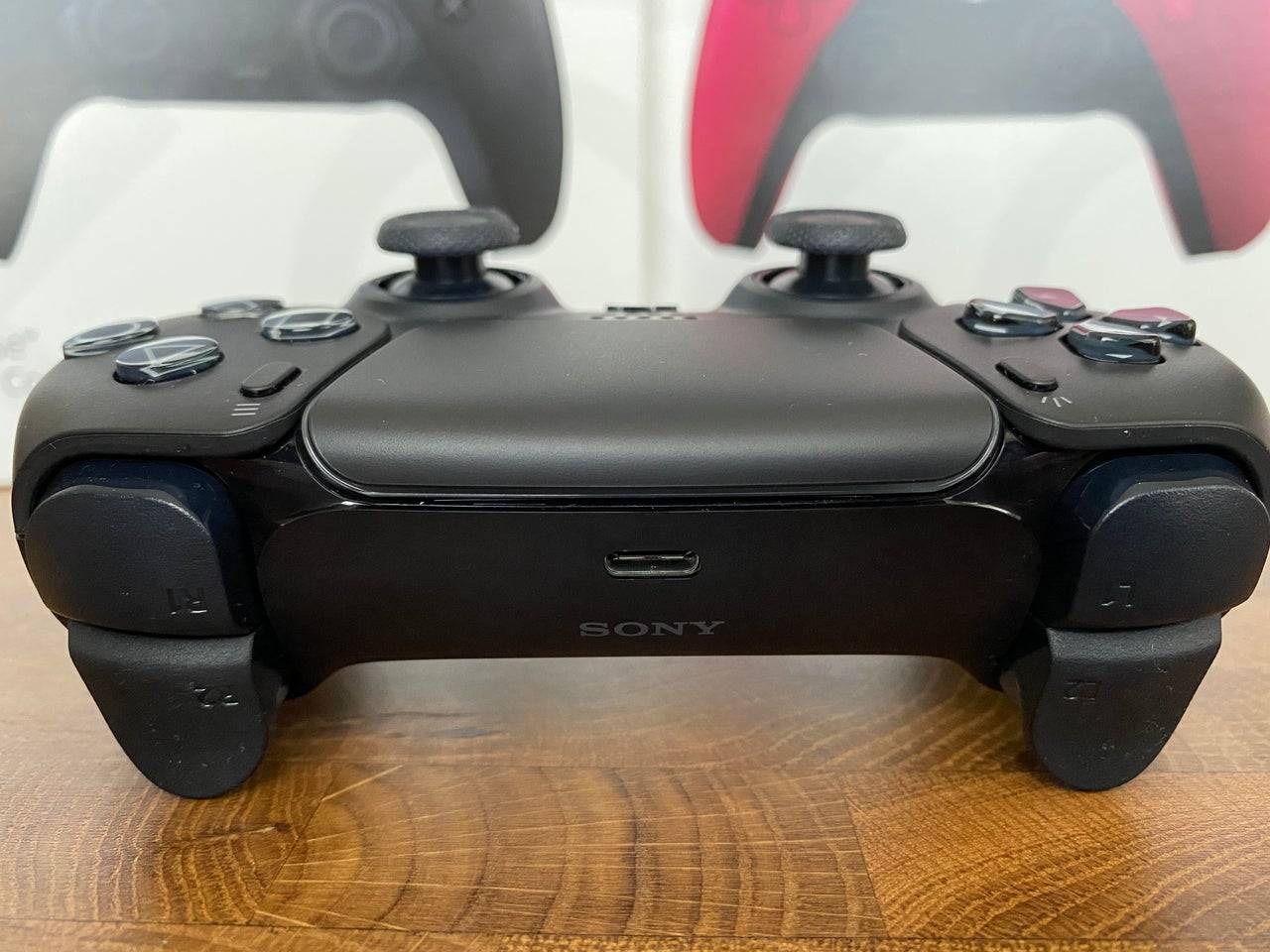
- Plug your selected USB cable into an open port on your PC.
- Plug the other end of the cable into the USB-C port on your DualSense controller.
- Wait for your Windows PC to recognize the DualSense controller as a gamepad.
How to Pair the PS5 DualSense Controller to PC over Bluetooth
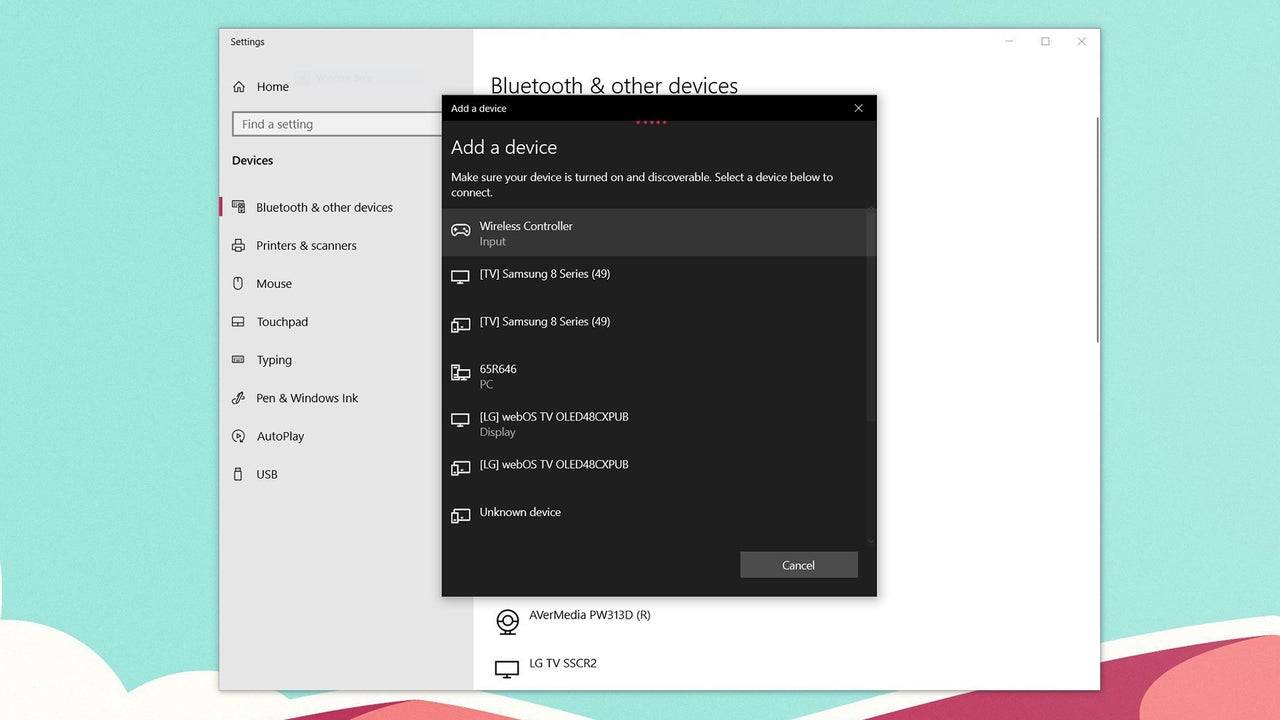
- Access your PC’s Bluetooth settings by pressing the Windows key, typing “Bluetooth”, and selecting **Bluetooth & other devices** from the menu.
- Select **Add Bluetooth or other device**.
- Choose **Bluetooth** in the pop-up window.
- On your DualSense controller (ensure it's disconnected and powered off), press and hold the PS Button and Create button (next to the D-Pad) simultaneously until the light bar under the touchpad starts blinking.
- On your PC, select your DualSense controller from the list of available Bluetooth devices.